

 See My Latest Article on HelloNation
What Is a Cache and Why Does It Exist?
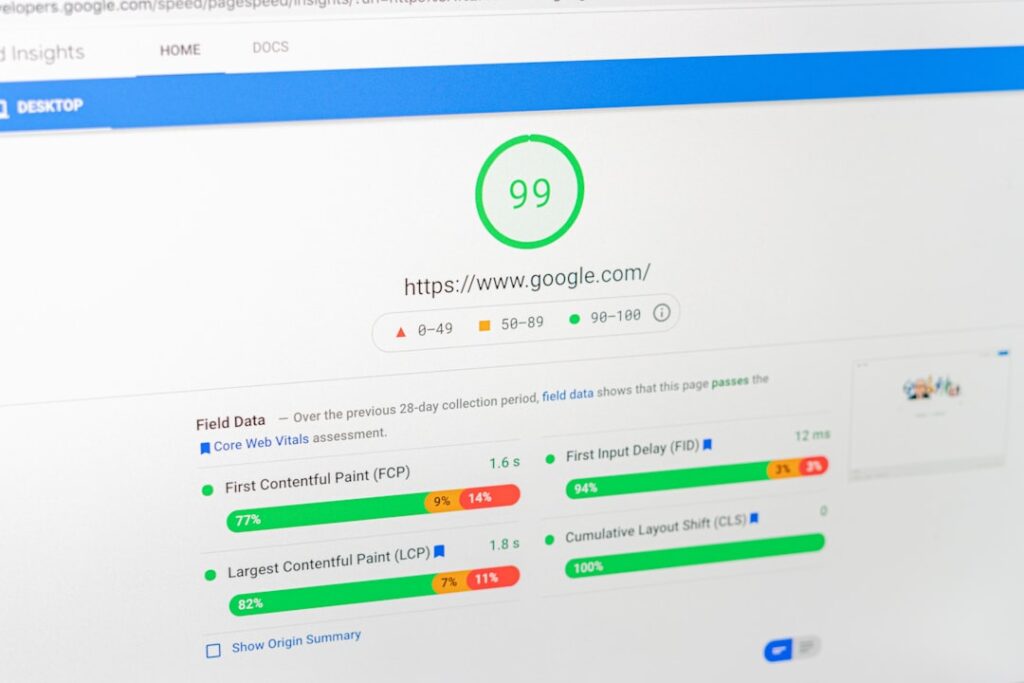
A cache is a temporary storage area on your device that helps websites and apps load faster by saving small pieces of data, such as images, scripts, and other content. Each time you visit a site, your browser may retrieve these files from the cache instead of downloading them all over again. This speeds up loading times and can save data, which is handy for households in Midland, TX managing multiple devices on home Wi-Fi or limited data plans.
What Actually Happens When You Clear Your Cache?
Clearing your cache removes those locally stored files from your computer, tablet, or phone. This means your device deletes the previously saved website data and, on your next visit to a site, everything must be downloaded again. Most devices make this process easy to do manually from your browser settings.
After clearing, you might notice:
- Websites load slower the first time you return, because images and scripts have to reload from scratch
- Some sites may forget preferences, such as language or display choices
- Website layouts might look different until new versions of files are stored again
Why Would Someone in Midland Want to Clear Their Cache?
There are a few common local scenarios:
- After a long dry and dusty season, devices may overheat indoors or in cars parked outside, sometimes leading to browser hiccups or glitches. Clearing cache can resolve odd website behavior that may result from temporary errors.
- Local community or school portals often update designs or features; clearing the cache helps ensure you see the latest information rather than an outdated version.
- Shared devices in households, especially in homes with young computer users, may accumulate plenty of cache data. Cleaning it out can free up storage space, particularly important for those using lower-capacity tablets.
Will Clearing Cache Delete My Passwords or Bookmarks?
No, typically clearing your cache does not erase saved passwords, bookmarks, or browser history. It only removes files like images, stylesheets, and scripts. However, if you also select "Cookies" or "Site Data" when following the steps, you may be logged out of certain sites, as cookies keep track of login status.
If your goal is simply to refresh website content or troubleshoot loading problems, leave "Cookies" unchecked and choose only the cache or "cached images and files" option.
Does Clearing Cache Help With Security or Privacy?
While cache files alone usually aren't a security risk, clearing them occasionally can protect your privacy. For example:
- Public or shared computers, such as those in local libraries or schools, may retain browsing traces
- Sensitive material, like forms filled out on insurance or utility websites, can sometimes linger in cached files
Regular cache clearing on shared or older devices is a smart basic practice for privacy, especially if multiple residents use the same computer.
Are There Downsides to Clearing Cache Too Often?
Yes, if you clear your cache frequently, you might find yourself repeatedly downloading the same data, which can:
- Use more data for households with capped internet plans
- Make websites load more slowly for the first visit each time
- Log you out of websites if cookies are also removed

For most home users, it's not necessary to clear the cache on a weekly or daily basis unless you notice problems. Occasional maintenance—every few months, after website updates, or when troubleshooting—is usually enough.
How Can You Tell If a Website Issue Is Cache-Related?
Often, page loading errors, layouts that look strange, or buttons that stop working can be traced back to old cached files. Midland residents sometimes run into this after local schools or utilities update their websites. If refreshing the page (Ctrl+R or Command+R) doesn't solve the issue, clearing the cache is a logical next step before contacting web support.
Practical Example: Clearing Browser Cache on Common Devices
Here's a brief example using a desktop browser:
1. Click the browser menu (typically three dots or lines).
2. Find "Settings" or "History."
3. Select "Clear browsing data."
4. Choose "Cached images and files."
5. Leave "Cookies" unchecked if you don't want to log out.
6. Confirm.
Smartphones and tablets have similar options in browser app settings. If you use multiple browsers (like Chrome and Edge), clear the cache in each one.
What About Caches in Other Apps or Devices?
Web browsers aren't the only applications that save cache data. Streaming services, social media apps, and even smart TVs in local households may accumulate cache over time. The steps to clear these vary by platform, but it can resolve playback or display issues. For apps, look in device settings under storage or data management.
Common Misconceptions About Cache Clearing
- My computer will be faster after clearing the cache: Not necessarily—while removing cache can resolve odd issues, it doesn't speed up devices overall. For older computers, performance issues often stem from lack of updates or low available memory, not just cached files.
- Cache is bad: Cache actually makes web browsing faster day-to-day. It becomes a problem only if it gets too large or contains outdated files.
Key Takeaways for Households in the Area
Understanding the cache is useful for troubleshooting browser woes, keeping shared devices tidy, and viewing up-to-date content. Clear your cache only as needed to avoid unnecessary slowdowns or data use, and rest assured: your favorites and saved passwords remain safe unless you specifically choose to delete them.