

 See My Latest Article on HelloNation
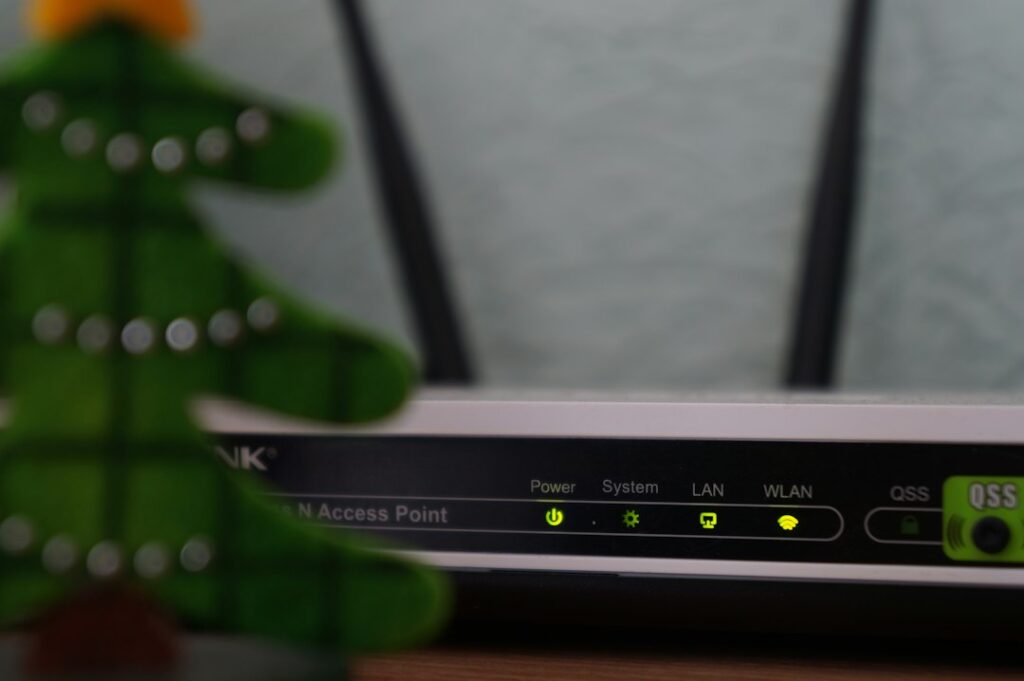
Slow internet does not always mean a household needs a faster plan. In many homes, the real problem is weak Wi-Fi coverage, outdated equipment, interference, too many connected devices, or a temporary issue outside the home. A few simple checks can often improve performance before any major changes are considered.
Is the problem the internet connection or the Wi-Fi?
The first step is to determine whether the slowdown affects the connection itself or only the wireless signal inside the home.
Run a speed test near the main router, then repeat it in the room where the connection feels slow. If speeds are strong near the router but much lower farther away, the issue is probably Wi-Fi coverage rather than the incoming internet service.
A wired test using an Ethernet connection can provide another useful comparison. If a wired device performs well while phones, tablets, or televisions struggle, the wireless network deserves attention.
Keep in mind that speed tests can vary based on the time of day, the test server, and activity on the network. Run two or three tests at different times before drawing conclusions.
Could restarting the equipment help?
Yes. Restarting the modem and router can clear temporary software errors, reconnect equipment to the network, and restore normal performance.
To restart safely:
- Unplug the modem and router from power.
- Wait about 60 seconds.
- Plug in the modem first and allow its lights to stabilize.
- Plug in the router and wait several minutes for the wireless network to return.
- Test the connection again.
Restarting is useful for occasional slowdowns, but it is not a permanent solution if the problem returns frequently. Repeated interruptions may point to equipment age, overheating, signal issues, or a problem with the incoming line.
Where should a router be placed?
Router placement has a major effect on wireless performance. The device should be located in an open, central area rather than inside a cabinet, behind furniture, or near large metal objects.
In a single-story home, a central location usually provides more even coverage. In a larger or multi-level home, placing the router near one end of the building can leave distant rooms with weak service.
Avoid placing the router near:
- Thick walls or enclosed utility spaces
- Metal shelving or appliances
- Large televisions and entertainment equipment
- Windows with direct heat and sunlight
- Floors, corners, or areas surrounded by dense building materials
Midland homes may experience intense summer heat, and network equipment should have ventilation rather than being pressed against a wall or enclosed in a crowded cabinet. Excessive heat can contribute to unstable operation.
Are too many devices using the connection?
A busy household can slow down even a capable internet connection. Video streaming, gaming, cloud backups, security cameras, automatic updates, and large downloads may all compete for available bandwidth.
Check which devices are connected to the network and look for activity that may be running unnoticed. Common examples include:
- A television streaming high-resolution video
- A computer uploading photos or backing up files
- A game console downloading a large update
- Multiple cameras sending recordings to cloud storage
- Several people using video calls at the same time
If performance is poor only during certain activities, the issue may be network congestion rather than weak service. Scheduling large downloads and backups during less busy hours can improve the experience for everyone.
Should the router software or device software be updated?
Keeping network equipment and connected devices updated can improve reliability and correct known performance problems. Router updates may also improve wireless management and security.
Check the router’s administration settings for an update option. Follow the equipment manufacturer’s instructions carefully, and avoid unplugging the device while an update is in progress.
Phones, computers, streaming devices, and smart-home equipment should also receive their regular software updates. An older device may perform poorly even when the network is working normally.
Can changing the Wi-Fi frequency improve speed?
Many modern routers use more than one wireless frequency. The lower-frequency band generally travels farther and passes through walls more effectively, while the higher-frequency band can offer faster performance at shorter distances.
A device located close to the router may perform better on the higher-frequency band. A device in a distant room may have a more reliable connection on the lower-frequency band.
The best choice depends on the home’s layout, wall materials, nearby networks, and the device being used. If one frequency is crowded or unreliable, switching to the other may help.

Is wireless interference affecting the connection?
Wireless signals can compete with nearby networks and electronic equipment. Dense housing, apartments, and homes with many connected devices may experience more interference than homes with fewer nearby networks.
Possible sources include:
- Neighboring wireless networks
- Older cordless phones
- Wireless audio equipment
- Microwaves during use
- Poorly positioned electronic devices
Changing the router’s wireless channel may help, although many newer routers can select a suitable channel automatically. Moving the router to a more open location is often simpler and more effective than changing advanced settings.
Would a mesh system or additional access point help?
Additional wireless equipment can improve coverage, but it does not automatically increase the speed entering the home. Its main purpose is to extend a reliable signal into areas the primary router cannot reach well.
Before adding equipment, identify the weak areas. If only one room has poor coverage, a carefully placed additional access point may be enough. If several parts of the home have weak service, a coordinated multi-point wireless system may provide more consistent coverage.
Poor placement can reduce the benefit. An additional unit should be placed where it still receives a strong signal from the main router, not in the dead zone itself.
Could the wiring or outside connection be the problem?
If wired devices are also slow, the issue may involve the modem, cables, wall connections, or the incoming service line. Loose connectors, damaged cables, water exposure, or aging equipment can create intermittent performance problems.
Inspect accessible cables for sharp bends, loose fittings, or visible damage. Coaxial and Ethernet cables should connect firmly without being stretched or crushed.
Weather can also affect outdoor infrastructure. Strong wind, heavy rain, dust, or heat may expose an existing weakness in an outside connection. If the slowdown affects every device and continues after basic checks, the problem may be beyond the home’s wireless setup.
What should residents check before changing plans?
Before considering a different service tier, record:
- Wired and wireless speed results
- The time of day when problems occur
- Which devices are affected
- Whether restarting helps
- Whether the problem occurs in one room or throughout the home
- Whether video calls, streaming, or browsing are affected differently
This information helps separate a coverage issue from a capacity issue. A faster plan may help a busy household, but it will not fix a router hidden in a cabinet, a damaged cable, or a weak signal in a distant room.
For many households, the most effective sequence is simple: restart the equipment, test near the router, improve placement, reduce unnecessary network activity, and check cables and updates. These steps address the most common causes without requiring complicated changes.